Full simulation
Full simulation sends an AMK mission to the EWA Client from Insight, with every value chosen by you. Use it to test how the Client handles one specific value, or to rehearse a realistic mission. Unlike Simplified simulation, nothing is random: you fill in the fields yourself and send the mission.
A simulated mission is real data in whichever environment you are signed in to. Use a test environment.
Access right configuration
| Access right | Requires federated login configuration? | Description |
|---|---|---|
MissionSimulator | No | Can open Administration > Simulation > Full simulation. |
The form
Go to Administration > Simulation > Full simulation.
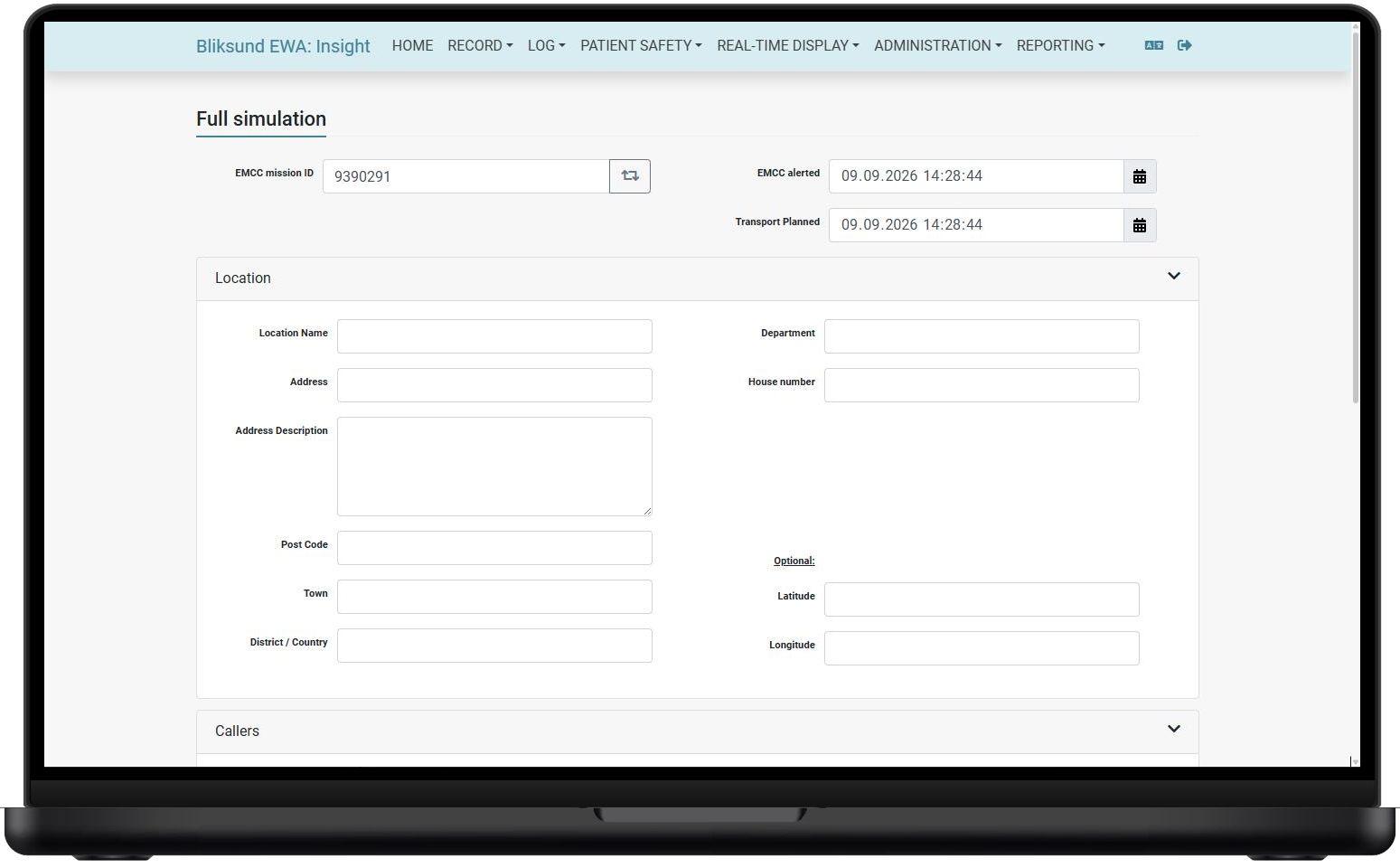
Some fields are already filled in. EMCC mission ID has a generated value, and the button beside it generates a new one. EMCC alerted and Transport planned are set to the current time.
The rest of the form is in five collapsible sections:
| Section | What goes in it |
|---|---|
| Location | Where the incident is: address, place name and optional coordinates. |
| Callers | Who called in. |
| Incident information | Emergency code, dispatch code (format A.00.00) and a description. |
| Patients | Who the patient is, including identification. |
| Resources | Which ambulance is assigned, and the mission timestamps. |
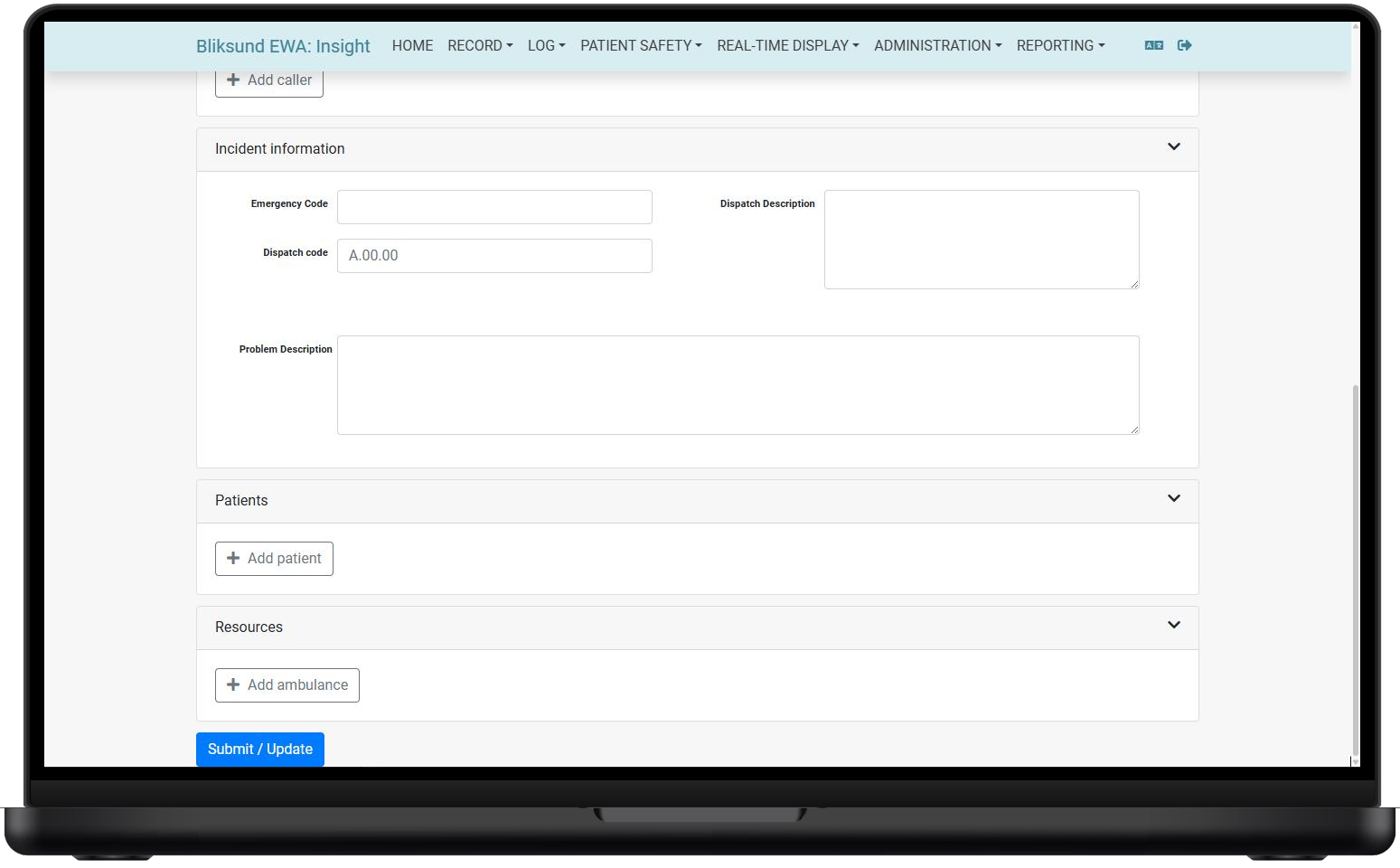
Callers, Patients and Resources are lists and start empty. Use Add caller, Add patient and Add ambulance to add entries.
You do not have to fill in everything. Set the fields your test depends on and leave the rest blank, except the required fields below.
Required fields
Fill in every field in this list. Without them, the mission is either refused when you send it or never stays on the tablet.
| Field | Where | If it is missing or wrong |
|---|---|---|
| EMCC mission ID | Top of the form | The mission is refused with "Sending failed (HTTP 400)". It is filled in for you when the page opens. |
| At least one ambulance | Resources | The mission is refused with "Sending failed (HTTP 400)". Use Add ambulance. |
| Ambulance ID | Each ambulance | The mission is sent, but only reaches a tablet signed in as the resource with that callsign. |
| Resource alerted | Each ambulance | The mission is removed from the Client within about a minute. See Resource alerted. |
Miles on an ambulance is optional, but if you fill it in it must be a whole number.
A decimal or a unit such as 12 km makes the mission refused with "Sending failed (HTTP 400)".
Resource alerted
Add ambulance adds a resource with an Ambulance panel of timestamps and a Destination panel. Resource alerted is the first timestamp in the Ambulance panel, and it starts empty.
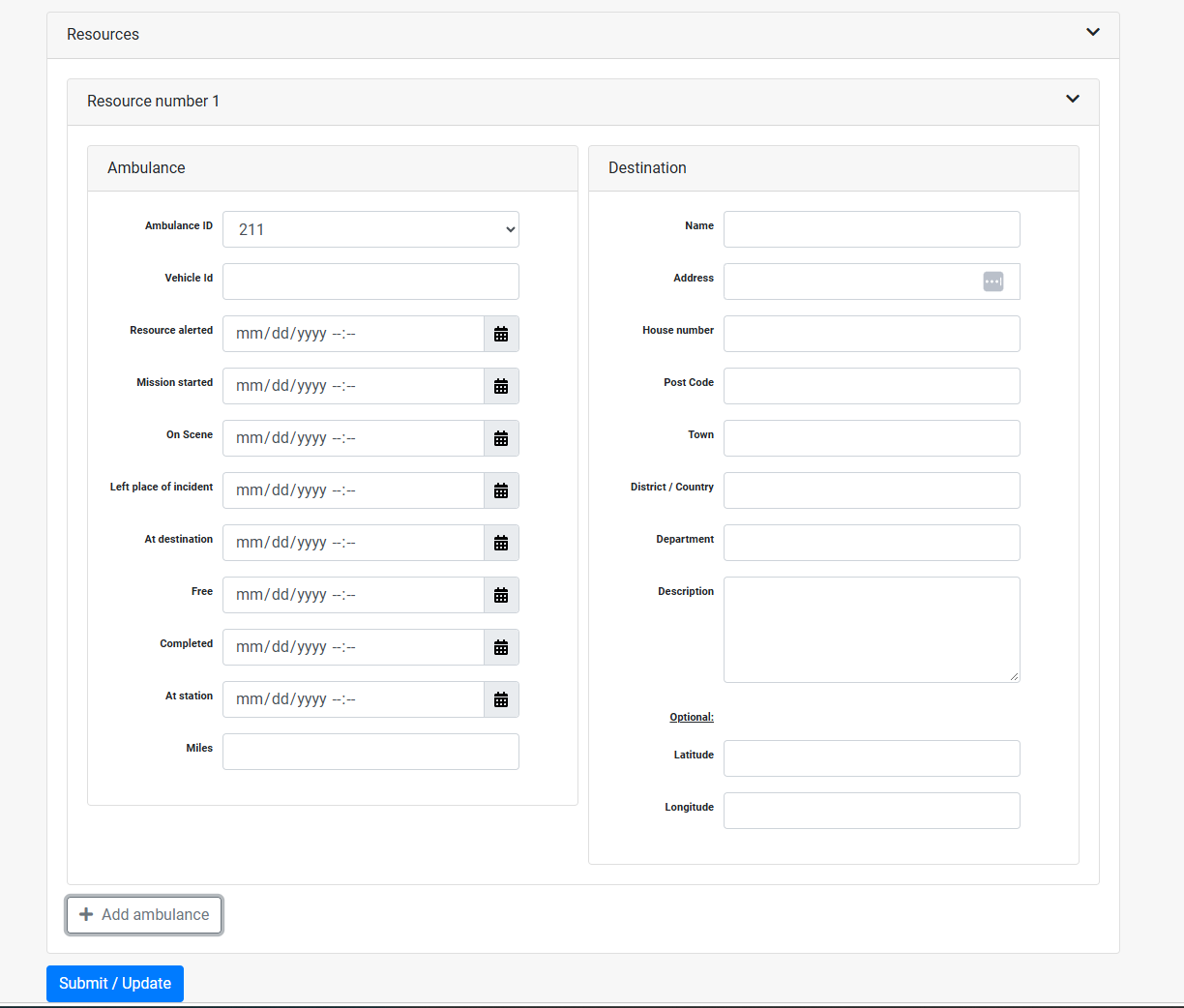
The Client runs a cleanup about once a minute. For each mission that has no record started on the tablet, it checks the Resource alerted time of every assigned ambulance. If that time is more than 6 hours in the past, the Client sends an aborted record for the ambulance and removes it from the mission.
When Resource alerted is left empty, the Client treats the time as long past. The mission is then removed from the Client within about a minute of arriving. The same happens if you enter a time more than 6 hours ago.
Set Resource alerted to the current time, or to a time within the last 6 hours.
Sending the mission
Submit / Update sends the mission. Press it once to send the mission, then change a value and press it again to send an update to the same mission.
The Patients section asks for a national identification number. Use an obviously invented one and never a real person's identifier. An invalid or wrongly formatted patient ID is also a common reason a record is refused at export.